Shopify low stock alerts, sent the moment a SKU crosses its reorder point
Restoc is a low stock alert app for Shopify stores, built to email you the moment a SKU crosses its reorder point, and to post the same alert into Slack on Growth and above. The trigger is not a round number you guessed at, it is the point where your sales velocity, your supplier lead time and your safety stock say it is time to order.
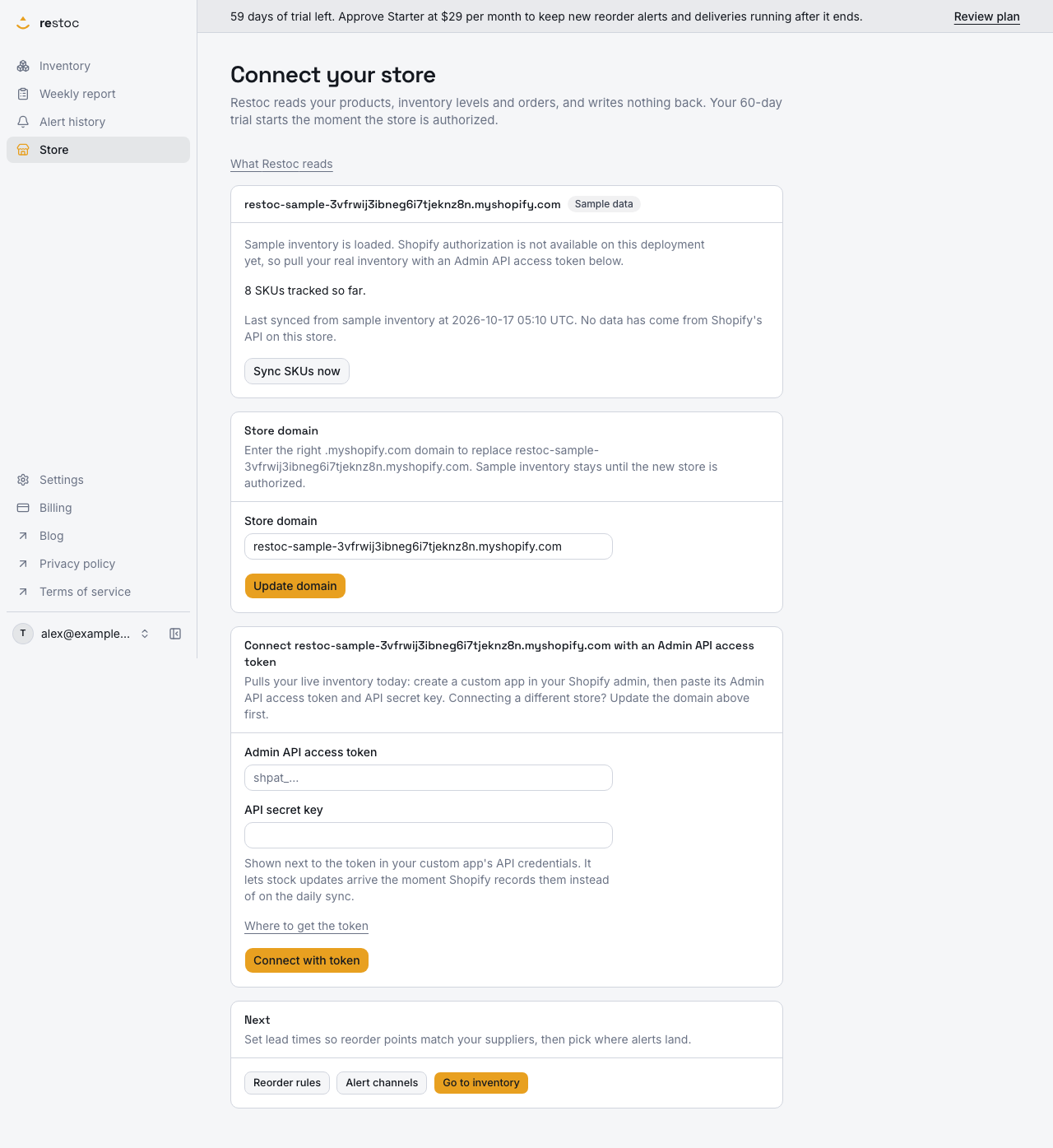
A screenshot of Restoc, which is not open yet, showing sample data. Nothing in it is a promise: what the product does is what this page says in words.
Stock runs out quietly
You searched for a Shopify low stock alert app because something ran out and nobody noticed until a customer did. That is the problem in one sentence. Inventory counts fall in the background, quietly, and nothing pushes the moment they get dangerous.
Restoc is built for that one moment. When a SKU crosses its reorder point, an email goes out. On Growth and above a Slack message posts alongside it. You do not have to remember to open anything.
The point the alert watches is worked out per SKU, not set as one flat number across the catalogue. It comes from that SKU's sales velocity, the lead time on that SKU, and a store-wide safety stock percentage on top. The velocity window is store-wide, 7, 14 or 30 days, with a per-SKU override on Pro. Our page on how to set a reorder point in Shopify walks through the inputs and the arithmetic. This page is about what happens after the crossing.
How the alert works
- Set lead time by supplier, not row by row
You know how long each supplier takes. Restoc syncs each SKU's vendor from Shopify on the scheduled sync, so you set one lead time per vendor on the vendor lead times screen and it fills every SKU that has no lead time of its own. No typing a number into hundreds of rows one at a time. A SKU you set by hand keeps its own number.
- Add safety stock for the bursty SKUs
Items that sell in bursts run out before an average-based reorder point is reached. So the reorder point takes a store-wide safety stock percentage on top of lead-time demand. The units that percentage works out to are shown per SKU on the dashboard, in the weekly reorder report and in the CSV export, so the number is never hidden from you.
- Choose where the alert lands
Email is on every plan and goes to your account email address until you change it in Settings > Alerts. On Growth and above you can also point alerts at a Slack incoming webhook, and send a test alert through it first. Our pages on the Slack webhook step by step, and on testing an alert before you rely on it, cover that setup.
- A background job watches the crossing
Restoc checks stock against each SKU's reorder point on a schedule and fires the alert when a SKU crosses it. The delivery runs as a background job, so nothing depends on you being logged in or on a tab staying open.
What happens between the crossing and your inbox
An alert is only worth having if you can trust what it means. Here is the mechanism, plainly.
The check runs on a schedule, not when you look
Restoc compares the current stock of every tracked SKU against that SKU's reorder point as a scheduled background job. The thing the alert is attached to is the crossing, the pass where a SKU went from above its point to below it. That delivery is idempotent, so a repeat run of the job over the same crossing writes no second record and re-sends nothing. Our page on duplicate low stock alert emails sets out that guard in full.
Two channels, split by plan
Email alerts are on every plan. Slack starts on Growth, through an incoming webhook you configure in Settings > Alerts, and the Slack message arrives alongside the email rather than instead of it. If you want the detail of the webhook itself, that has its own page.
The alerts that fired stay on the dashboard
The dashboard carries a recent alerts panel: which SKU crossed, which channel the alert went to, when it was triggered and when it was delivered. It is the latest alerts rather than a full archive, so read it as a check that delivery is working, not as a search over every alert you have ever had.
What you do with it
The alert is the prompt. The weekly reorder report is the list, with a suggested order quantity per SKU and a CSV export, and the dashboard shows days of inventory remaining per SKU when you want the wider picture. Both have their own pages in this section.
What you get out of it
The alert names the SKU, not the store
You are told which SKU crossed, so the next action is placing an order rather than opening a dashboard and hunting for what changed.
A threshold that allows for burst selling
Lead-time demand plus a store-wide safety stock percentage, with the safety stock shown in units per SKU. You can see why the number is what it is before you trust the alert that fires on it.
Slack where the buying decision happens
On Growth and above, the alert arrives in the channel where you already talk about purchase orders, through an incoming webhook. No extra seat, no separate inbox to check.
It runs whether or not you open the app
The check and the send are a scheduled background job, and the dashboard shows what went out and when. Stock gets watched on the days you are busy doing something else.
Long enough to see it work before you pay
Every plan starts with a 60-day free trial, built so at least one full weekly reorder cycle completes before the first charge. You judge the alerts on your own SKUs, not on a demo.
What this page does not promise
We would rather be plain than oversold.
- Restoc alerts you. It does not place the purchase order, and it does not talk to your supplier.
- Starter sends alerts by email only. Slack alerts start on Growth, and the per-SKU velocity window override starts on Pro.
- Safety stock is one percentage for the whole store, not a figure you tune per SKU.
- Vendor lead times fill the SKUs that have no lead time of their own. They do not overwrite a lead time you set on a SKU yourself.
- Plans cover one location. If you need a different reorder point per warehouse, this is not that tool yet, and our multi-location page says where the line sits.
- The dashboard shows the most recent alerts, not a searchable history of every alert across a long trial.
- SKU caps are enforced at sync time, per plan tier, by the server. Tracking more SKUs than your tier allows means moving up a tier, not a quiet overage.
- It is a web app. There is no mobile app and no browser extension, which is part of why the alert comes to email and Slack.
- Restoc is not launched yet. Everything on this page describes what it is built to do, and there are no customers to quote.
Where alerts sit in the plans
Starter, $29 / month
Up to 200 tracked SKUs, one location. Email alerts when a SKU crosses its reorder point, the reorder point per SKU from your velocity and lead time, the store-wide velocity window of 7, 14 or 30 days, the weekly reorder report with suggested order quantities as CSV, and a dashboard of days of inventory remaining. $290 a year if you pay yearly, which is ten months' price for twelve. 60-day free trial.
Growth, $59 / month
Everything in Starter, plus Slack alerts through an incoming webhook alongside email, and up to 1,000 tracked SKUs, five times Starter's capacity, enforced at sync time. One location. $590 a year billed yearly. 60-day free trial.
Pro, $99 / month
Everything in Growth, plus custom reorder rules: a per-SKU override of the sales velocity window. Up to 2,000 tracked SKUs, one location. $990 a year billed yearly. 60-day free trial.
Join the waitlist
Restoc is in build. If you want reorder alerts by email, or by email and Slack, for a store of 50 to 2,000 SKUs, put your email on the waitlist and we will tell you when the install is open.
When it is, you connect your store through Shopify's install flow, sign in with an email and a password, and the app runs on Amazon Web Services, which also sends the alert emails through Amazon SES. No card details go to us: plans are billed by Shopify on your Shopify invoice.
Questions
How do I get notified when stock is low on Shopify?
With Restoc, you set a lead time per SKU or per supplier, pick a sales velocity window of 7, 14 or 30 days for the store, and set a store-wide safety stock percentage. Restoc derives a reorder point per SKU from those inputs and emails you when the SKU crosses it. On Growth and above the same alert also posts to a Slack webhook.
Can the alert go to Slack?
Yes, on Growth at $59 a month and above, through a Slack incoming webhook you configure in Settings > Alerts. Starter sends alerts by email only. Our page on sending Shopify stock alerts to Slack takes the webhook setup step by step.
Do I have to type a lead time into every SKU?
No. Each SKU carries its vendor, synced from your Shopify product, and the vendor lead times screen lists each vendor with one lead time field. Saving it fills every SKU under that vendor that has no lead time of its own, so the reorder points are right without hundreds of individual edits.
Does the reorder point allow for items that sell in bursts?
That is what the safety stock percentage is for. It is applied store-wide on top of lead-time demand, so the alert fires earlier than a pure average would suggest. The units it adds for each SKU are shown on the dashboard, in the weekly reorder report and in the CSV, so you can see exactly what it did.
Can I see which alerts were sent?
The dashboard has a recent alerts panel showing the SKU, the channel, when the alert was triggered and when it was delivered. It covers the most recent alerts rather than the full history, so it is a delivery check more than an archive.
Does Restoc order from my supplier?
No. Restoc tells you which SKU crossed its reorder point and, in the weekly reorder report, how much it suggests ordering. Placing the purchase order and talking to the supplier stay with you.
How many SKUs can I track?
200 on Starter at $29 a month, 1,000 on Growth at $59 a month, and 2,000 on Pro at $99 a month, with the cap enforced at sync time. Each plan covers one location. Paying yearly costs ten months' price for twelve: $290, $590 and $990.
Can I use it today?
Not yet. Restoc is still being built, so the honest answer is a waitlist. Leave your email and we will write to you when the install is open, not before. Every plan then starts with a 60-day free trial.