How to set a reorder point in Shopify
A reorder point is the stock level at which you place the next order, and it is only useful if it moves when your sales move. Restoc calculates one for every SKU from your store's own sales velocity, the lead time you set once for a vendor or on an individual SKU, and a store-wide safety stock percentage, instead of asking you to type a fixed number and hope it still fits in three months.
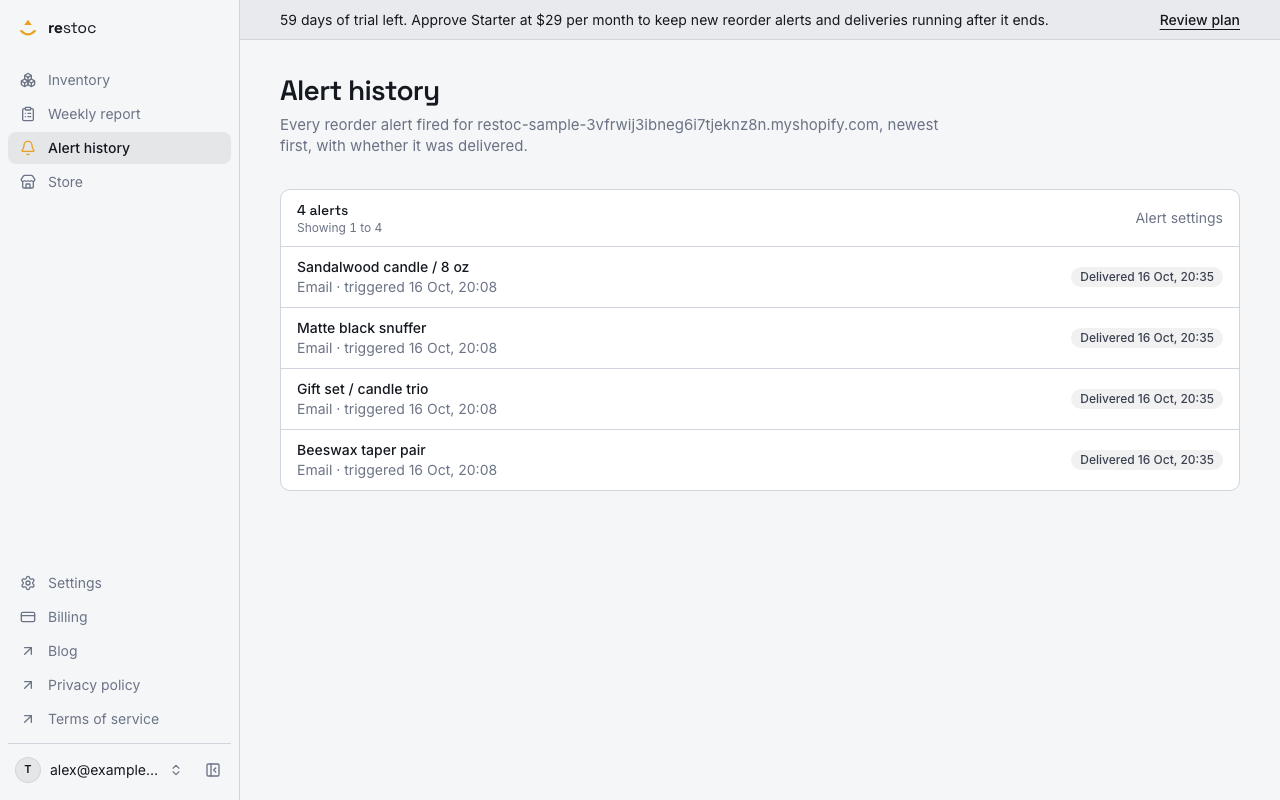
A screenshot of Restoc, which is not open yet, showing sample data. Nothing in it is a promise: what the product does is what this page says in words.
What a reorder point is, and what it needs from you
A reorder point answers one question. At what stock level do I place the next order so the goods arrive before the shelf is empty? Shopify's admin has no field for that number, so you either keep it in a spreadsheet or you have something calculate it.
Three inputs decide it. How fast the SKU sells, how long your supplier takes to deliver it, and how much cover you want on top for the weeks that do not behave. Restoc reads the first from your store's own inventory and sales data over a window you choose, 7, 14 or 30 days. It takes the second from you, in whole days, either once for a vendor or on an individual SKU. The third is a safety stock percentage you set once for the store. Those go into one calculation engine and come back out as one reorder point per SKU.
Why a number you type once goes stale
The common approach is a fixed threshold per product, typed into a spreadsheet column on a quiet Tuesday. It is correct on the day you write it. Then a product gets featured somewhere. Or a supplier moves from air freight to sea. Or the season turns. The threshold you set for a slow month now fires two weeks too late on a SKU selling three times faster. Nobody goes back and rewrites four hundred rows.
A calculated reorder point moves on its own. The sales half of the sum is recomputed from recent history rather than remembered from last year.
The arithmetic, in plain terms
Take the average units a SKU sells per day across your chosen window. Multiply by the number of days you wait for that supplier. That product is roughly the stock you will sell through while the purchase order is in transit, which is why it is the level worth acting on. Then add safety stock, a percentage carried on top of that lead-time demand, because demand does not arrive at an even rate and an average-based threshold is reached too late on anything that sells in bursts. Restoc runs that per SKU, so you are not maintaining the same sum by hand a few hundred times over.
The calculation itself is a pure function with unit tests around it, safety stock included. Same inputs, same output, every time, with no hidden state that drifts between runs.
Where the sales half comes from
You install through Shopify's own authorisation flow. Restoc then reads inventory levels and orders from your store, through webhooks plus a scheduled sync job. The install is built to backfill around 30 days of sales history, so a 7 or 14 day window has a full window behind it rather than starting from empty, and a 30 day window sits right at the edge and thickens as orders arrive. Restoc is a web app, with no mobile app and no browser extension.
How you set it in Restoc
- Choose a sales velocity window
7, 14 or 30 days. This is the stretch of recent sales history the reorder point is calculated from, and it is one setting for the whole store on Starter and Growth. On Pro you can also override the window on an individual SKU, so a spiky seasonal line does not have to sit on the same setting as a steady staple.
- Set one lead time per vendor
Each SKU carries the vendor from its Shopify product, pulled in by the scheduled sync. A vendor lead times screen in settings lists every distinct vendor in your catalogue, so you enter the wait once for that supplier and it fills every SKU under them that has no lead time of its own. That is how a 900 SKU catalogue gets honest lead times without you typing nine hundred numbers.
- Override the odd SKU that behaves differently
Lead time still belongs to the SKU when you want it to. One item may come from a local supplier in four days while another from the same vendor is made to order over ninety. Enter a lead time on that row and it wins over the vendor default.
- Add a safety stock percentage
Lead-time demand assumes sales arrive evenly. They do not. A store-wide safety stock percentage sits on top of that demand inside the same calculation, so items that sell in bursts have cover instead of running dry three days before the pallet lands. One number for the store, applied to every SKU's reorder point.
- The engine returns one reorder point per SKU
Velocity over your window, the lead time in force for that item and your safety stock percentage resolve into a single number for the SKU, stored against its title, your own SKU code and its current stock. No range, no traffic-light guess, one figure you can compare against stock on hand.
- Bad inputs are refused at the server, not quietly stored
Lead time has to be a positive whole number within a sane bound of 1 to 365 days, and the velocity window has to be 7, 14 or 30. Anything else comes back as a clear error message rather than being written to your rules and skewing every reorder point that depends on it.
- Change any input and the number follows
A vendor quotes you a longer lead time, or a run of stockouts tells you the buffer is too thin. Edit the field, and the calculation runs again on the same tested path for every SKU it touches.
Choosing your velocity window
| Window | Suits | Trade-off |
|---|---|---|
| 7 days | Fast movers and items where demand is clearly shifting right now | Reacts quickly, but one unusual week pulls the number with it |
| 14 days | A middle setting for most of a catalogue | Smooths the odd quiet day without lagging a real trend for long |
| 30 days | Slow, steady lines and anything with lumpy day to day sales | Stable and calm, but slower to register a genuine change in pace |
What you get from calculating it rather than guessing it
Lead time follows the supply chain, not the store
Your fastest vendor and your slowest one do not have to be averaged into a single store-wide fudge. Set the wait once per vendor, override it on the SKUs that differ, and the number you read is the number for the route that item actually travels.
Bursty sellers get a buffer, not an average
The safety stock percentage is carried into every reorder point, and the units it adds are shown as their own column on the dashboard, in the weekly reorder report and in the CSV export. You can see how much of a reorder point is cover and how much is lead-time demand, rather than taking one blended figure on trust.
Vendor shows up where you act on it
The vendor synced from Shopify appears on the dashboard and on the weekly reorder report, so the list of SKUs below their reorder point can be read supplier by supplier instead of reshuffled by hand before you place orders.
Awkward SKUs still return a usable number
Zero-sales items, products with less history than the window you picked, lines with wildly uneven sales, and items already sitting at zero stock are covered by unit tests that assert the calculation returns a defined, non-negative reorder point. No blanks, no negative thresholds, no errors landing in the middle of your catalogue.
The window is a decision you can see and change
You are not stuck with somebody else's smoothing. Pick 7, 14 or 30 days for the store, and change it when your catalogue's behaviour changes. If you need one SKU calculated on a different window from the rest, that per-SKU override is the thing Pro adds.
What the reorder point then drives
The number on its own is a reference. What makes it useful is what happens when stock crosses it.
Once a SKU has a reorder point, Restoc watches it. The dashboard shows current stock, days of inventory remaining, safety stock units and reorder status per active SKU. An alert goes out by email when a SKU crosses its reorder point, through a background job built to fire once per crossing rather than repeating itself. On Growth and above the same alert can go to a Slack webhook you configure. The weekly reorder report lists every SKU below its reorder point with a suggested order quantity and its safety stock, viewable in the app and exportable as CSV for whoever places your purchase orders.
So the inputs on this page are the ones every other screen is built from. Get the vendor lead times honest, the window sensible and the buffer deliberate, and the rest of the product has something true to work with.
Where Restoc is today
Restoc is being built for Shopify merchants running roughly 50 to 2,000 SKUs who want to know when to reorder without buying a forecasting suite. It is a web app, and it is not open to every store yet, so the honest position is this: you can join the waitlist and we will tell you when your store can connect.
The plans are Starter at $29 a month for up to 200 tracked SKUs, Growth at $59 a month for up to 1,000, and Pro at $99 a month for up to 2,000, each with a 60-day free trial. Paid a year at a time, that is $290, $590 and $990, which is ten months' price for twelve. Annual billing is available as an option. Subscriptions are billed by Shopify on your Shopify invoice rather than by a separate card payment.
Reorder points calculated per SKU from your velocity window, lead time and safety stock percentage are on every tier, as are email alerts, the weekly report and the dashboard. Slack alerts through an incoming webhook start on Growth. The tiers otherwise differ by SKU cap, and Pro adds one thing on top: custom reorder rules, meaning a per-SKU override of the sales velocity window. Each plan covers one location, and we will say so plainly rather than implying otherwise. Sign in is by email and password, and the app runs on Amazon Web Services.
Questions
How do I set a reorder point in Shopify?
Shopify's admin has no reorder point field, so the number has to come from somewhere else. In Restoc you give it three things: a sales velocity window of 7, 14 or 30 days for the store, a lead time in days set once per vendor and overridden on individual SKUs where needed, and a store-wide safety stock percentage. Restoc calculates the reorder point from those, so it moves with your sales instead of staying where you typed it.
Does Restoc add safety stock?
Yes. The reorder point function takes a store-wide safety stock percentage and carries it on top of lead-time demand, which is what covers the items that sell in bursts rather than evenly. The units that buffer adds are shown in their own column on the dashboard, in the weekly reorder report and in the CSV export, so you can see how much of a reorder point is cover.
Do I have to type a lead time into every SKU?
No. Each SKU carries its vendor from Shopify, and a vendor lead times screen in settings lists every distinct vendor in your catalogue. Set the wait once for that vendor and it fills every SKU under them that has no lead time of its own. Only the exceptions need a lead time on the row itself.
Can I set a different reorder point for each product?
Yes. Every SKU gets its own calculated reorder point, because the velocity half is that item's own sales and the lead time half comes from its vendor or from the SKU's own override. If you also want the velocity window itself to differ by SKU, that per-SKU override is on Pro.
What lead time should I enter?
The full number of days from placing the order to the stock being sellable, including freight and receiving, not just the vendor's production estimate. It has to be a whole number between 1 and 365, and anything outside that is rejected with a clear error.
Do I have to wait for sales history before the number means anything?
Less than you used to. The install is built to backfill around 30 days of sales history, so a 7 or 14 day window has a full window behind it from the start. A 30 day window sits at the edge of that backfill and firms up as new orders come in through webhooks.
What happens to a SKU that has not sold anything yet?
It still returns a defined, non-negative reorder point. Zero-sales SKUs, items with less sales history than the window you picked, items with very uneven sales, and items already at zero stock are all covered by unit tests on the calculation.
What does it cost, and can I use it today?
Starter is $29 a month for up to 200 tracked SKUs, Growth is $59 a month for up to 1,000 and adds Slack alerts, and Pro is $99 a month for up to 2,000 and adds the per-SKU velocity window override. Each includes a 60-day free trial, and paying yearly costs $290, $590 or $990, which is ten months' price for twelve. Restoc is on a waitlist while it is being built, so the honest answer on using it today is not yet, and we will tell you when your store can connect.