Apply one lead time across every SKU, then override the exceptions
Restoc holds one lead time for your whole store, in whole days, and one control in Settings > Reorder rules applies it to every tracked SKU in your Shopify catalogue. From there you override only the individual SKUs that do not fit that number.
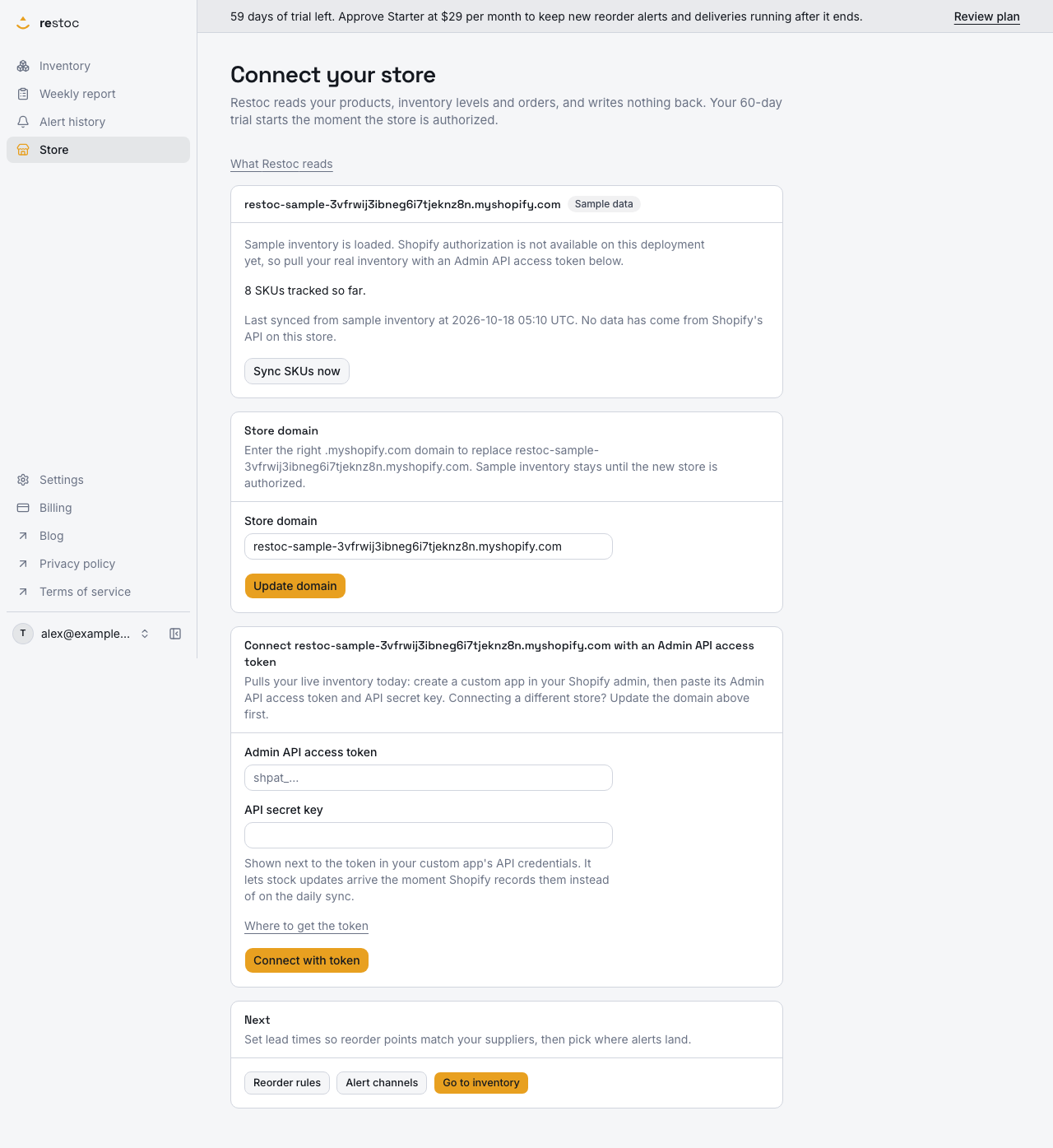
A screenshot of Restoc, which is not open yet, showing sample data. Nothing in it is a promise: what the product does is what this page says in words.
Why a lead time per SKU never gets typed in
A reorder point needs two numbers for each SKU. How fast the item sells, which Restoc works out from your store's Shopify sales history. And how long a replacement takes to arrive, which only you can supply.
That second number is where reorder setups stall. A catalogue of 500 variants means a lead time field on 500 rows, and nothing downstream is trustworthy until the last one is saved. A half-filled table is worse than an empty one, because the rows you did fill make the dashboard look finished.
Most of that typing is duplication. For the great majority of rows in a small catalogue, one figure is close enough: the same domestic supplier, the same courier, the same week in and week out. So Restoc is built with two levels and no more. One lead time for the store, written across everything in a single action, and a lead time on an individual SKU's row for the handful that genuinely behave differently.
This page is about that mechanism: the default and the override. Deciding which single number a SKU should carry when two suppliers quote you two different spans is a separate question, and the sibling page on several suppliers and several lead times is where that argument lives.
How to set a lead time for all SKUs in Restoc
- Set the store default once
Settings > Reorder rules carries a single lead time field for the whole store. Enter a whole number of days and press apply to all SKUs. Every tracked SKU takes that number, and every reorder point is recalculated from it.
- Let the server check the number
Lead time is validated server-side as a whole number of days between 1 and 365, and the sales velocity window as one of 7, 14 or 30 days. A value outside those bounds comes back with a plain error message and a 400 rather than being quietly stored, so a typed 3650 cannot silently become a reorder point.
- Override the few real exceptions
Lead time is a merchant-input figure per SKU, so a value saved on a single SKU's own row in reorder rules takes precedence over the store default. That is where the one item on a slow boat lives, and nowhere else, so the exceptions stay countable.
- Know what a second apply does
Apply to all SKUs is a write, not a fallback. It stamps the value you entered onto every tracked SKU, including rows you had overridden, which is exactly what you want when the whole store moves and exactly what you do not want when you only meant to change the baseline. Change the overridden rows individually in that case.
- Watch the downstream numbers move
The reorder point is recomputed for each SKU from its lead time and your velocity window. Days of inventory remaining on the dashboard, the suggested order quantities in the weekly reorder report and its CSV export, and the level that fires an alert all follow from that one figure.
What this gets you
One field, the whole catalogue
A store-wide lead time written across every tracked SKU in one action, rather than one field and one save per row.
Overrides where they earn their place
A per-SKU lead time beats the store default, so the one item that ships from overseas can carry 60 days while the rest of the catalogue carries 7, and you maintain two kinds of entry rather than hundreds.
One number, three screens
The same lead time drives days of inventory remaining on the dashboard, the suggested order quantity in the weekly reorder report, and the point at which an email alert fires, with Slack alerts through an incoming webhook as well on Growth and above. Change it once and all three agree.
The same arithmetic on every SKU
Reorder points come from one tested pure function, including the awkward rows: a SKU with no sales in the window, a SKU with less history than the window, a SKU already at zero. You can check any row by hand and get the same answer.
Time to get the number right
Every plan is built to start with a 60-day free trial that lets at least one full weekly reorder cycle complete before the first charge, so you can set a lead time, see what the report says, and correct it before you pay.
Which lead time a SKU uses
| Where it is set | What it covers | When it applies |
|---|---|---|
| That SKU's own row in reorder rules | One SKU | Whenever that SKU carries a lead time of its own |
| The store-wide field in Settings > Reorder rules | Every tracked SKU | As the baseline, and it overwrites existing per-SKU values when you apply it |
What the lead time does to your reorder point
Restoc's engine takes average daily sales over the velocity window you choose, 7, 14 or 30 days, and multiplies it by the SKU's lead time in days. That gives the stock level at which an order has to be placed for the delivery to land before the shelf empties. It is implemented as a tested pure function, which is the boring reason the same inputs always give the same number.
The velocity window is a store-wide setting on Starter and Growth. Pro adds an override of the window for an individual SKU, which matters for items that sell in bursts rather than evenly, where a 30-day average flattens a spike you need to see.
The cascade runs one way and runs every time. Saving a lead time recomputes the reorder point for the SKUs it touched. The dashboard reads those recomputed points when it shows current stock, days of inventory remaining and reorder status. The weekly report lists the SKUs that sit below their point and suggests a quantity against it, and the CSV export carries the same rows. Alerts fire on the crossing of that same point, by email on every plan and by Slack webhook on Growth and above. Raise the store-wide lead time from 7 to 21 and more rows fall below their point at once, which is the honest consequence of admitting your supplier is slower than you had written down.
If you have never measured your own lead time, the lead time entry in this section covers how to count it end to end, and the reorder point entry works the arithmetic through on a single SKU.
The edges, named plainly
We would rather you know these before you connect a store.
- Clearing per-SKU overrides takes two passes today. Apply to all SKUs is disabled while the field still shows the current default, so you cannot press it at the number already there. To put every SKU back on a default of 7 days, type a different number, apply it, then type 7 back and apply again. The fix is on our list and we have no date for it yet.
- Lead time is whole days, from 1 to 365. No hours, no fractional days, and the bound is enforced on the server.
- One location. Every plan tracks a single location, so there is one lead time per SKU rather than one per location.
- No safety stock in the calculation. The reorder point today is average daily sales multiplied by lead time. A store-wide safety stock percentage is approved work on our list, and we are not putting a date on it either.
- Web app only. There is no mobile app and no browser extension.
- Not open to every store yet. The waitlist is how stores come in. Every plan is built to start with a 60-day free trial, billed by Shopify on your Shopify invoice rather than by a separate card payment.
Questions
Can I set one lead time for every SKU at once?
Yes. The store-wide lead time field in Settings > Reorder rules has an apply to all SKUs action that writes the value across every tracked SKU and recalculates each reorder point from it.
What if most SKUs share a lead time but a few do not?
Set the common figure as the store default, then override the exceptions. A lead time saved against a single SKU's own row takes precedence over the store default, so the rest of the catalogue stays on the baseline.
Does applying a new default wipe my per-SKU overrides?
Yes. Applying to all SKUs means every tracked SKU takes the value you applied. If you want to keep the overrides, edit the individual rows instead. Clearing overrides deliberately takes two passes today, as described above.
What number should I enter if I am not sure of my lead time?
Enter your honest estimate of the days from deciding to order to the stock being sellable, including receiving and put-away, and correct it after the next delivery. A number that is too short is the expensive mistake, because it puts the order in after the shelf has already run down.
Does changing the lead time change my alerts too?
Yes. The reorder point moves with the lead time, and an alert fires when a SKU crosses that point. Email alerts are on every plan and Slack alerts, through an incoming webhook, are on Growth and above.
Can the sales velocity window differ per SKU as well?
The window is store-wide on Starter and Growth, as one of 7, 14 or 30 days. Pro adds a per-SKU override of that window, for items whose sales pattern does not match the rest of the catalogue.
How many SKUs can carry a lead time?
As many as your plan tracks: 200 on Starter at $29 a month, 1,000 on Growth at $59, 2,000 on Pro at $99, with the cap enforced server-side at sync time. The store-wide lead time applies to every tracked SKU within that cap.
What if two suppliers quote me different lead times for the same item?
A SKU carries one lead time, so the number you save has to be the span you actually plan around. The sibling page on several suppliers and several lead times works through how to choose it.